| |   | | | Attaching Pictures to E-mail Even though the Scan Dialog Box program has an e-mail function, there will be times when it is necessary to attach images to e-mails the "old fashioned" way. Usually these steps are necessary when the e-mail service doesn’t use an SMTP address (like America Online) or when the Scan Dialog Box is unable to properly connect through the mail server. E-mail Basics Part One – Scanning the Image and Saving It Part Two – How to Attach Files With Several Popular E-mail Services
Hotmail - After logging into Hotmail, choose Compose.
- On the Compose screen, enter the appropriate information in the "To," "Subject" and "Message" areas.
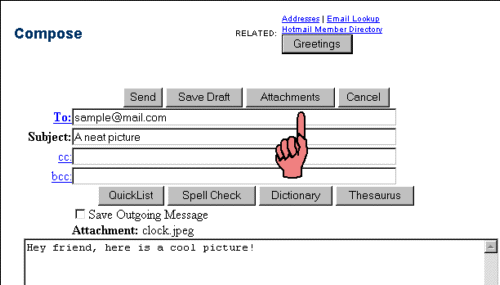
- Click the Attachments button in the group of buttons above the "To" line.
 - A Compose Attachments screen appears.
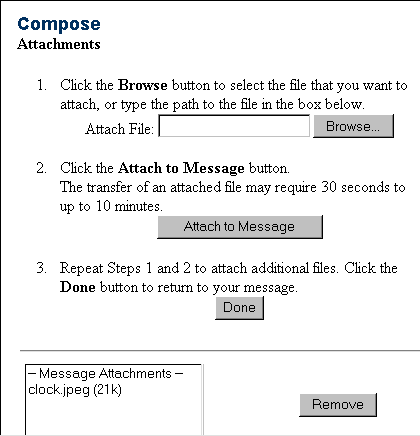 - Click the Browse button to browse through the drives and directory folders until the desired file is found. Highlight the file and click Open and the file will appear in the "Attach File" line.
- Click the Attach to Message button.
 - Repeat the steps until all of the desired files have been attached. The total attached files cannot exceed 1000 KB (or 1 MB) in size. Click the Done button.
- The names of the attached files will appear in the Attachment line. Click the Send button to send the e-mail.
| | | |