 | Document # 2040 |
        |
Understanding OCR |
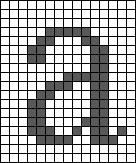
| Make sure you have read documents # 2010, 2020, and 2030 before readingthis one. You just finished writing a rough draft for a term paper and printeda copy of it on your laser printer. Then lightning struck your house andblew out your computer, including the hard drive. You got the computerfixed, but were unable to save any of the data from your hard drive. Youdread the thought of re-typing ten pages of text and wonder if there’sany other way to get your paper back into your word processing program. It occurs to you that your new scanner may be useful here. The onlyproblem is that scanners produce bitmap images, which look like the onebelow. Word processors are not capable of editing bitmap images. So howdo you convert the scanned images of your term paper into something thatyou can edit with a word processor?
Bitmap image of the letter "a" as produced by a scanner.
The OCR software that came with your scanner is designed just for thistask. You’ll have your term paper back in the computer relatively quicklywith OCR software. This document tells you how it all works. The human brain can easily recognize the letter "a" in hundredsof different sizes and fonts. Computers, however, aren’t as smart as people.The promise of Optical Character Recognition (OCR) software is to scanand recognize text then convert it to a word processor file for furtherediting. OCR software does this in three primary ways: Pattern Matching, FeatureExtraction and Spell Checking. Pattern Matching Method Most text is either in Times, Courier, or Helvetica typefaces in pointsizes between 10 and 14. OCR programs which use the Pattern Matchingmethod have bitmaps similar to the picture above stored for every characterof each of the different font and type sizes. By comparing the stored bitmapsdistributed with the OCR program to the bitmaps of the scanned lettersthe program attempts to recognize the letters. An obvious limitation tothis method is that it is only useful for the fonts and sizes stored. Feature Extraction Method Rather than trying to match a bitmap to the scanned letters, featureextraction attempts to recognize letters by condensing the scanned lettersto their basic "features" which are compared to a list of featuresstored in the program’s code.
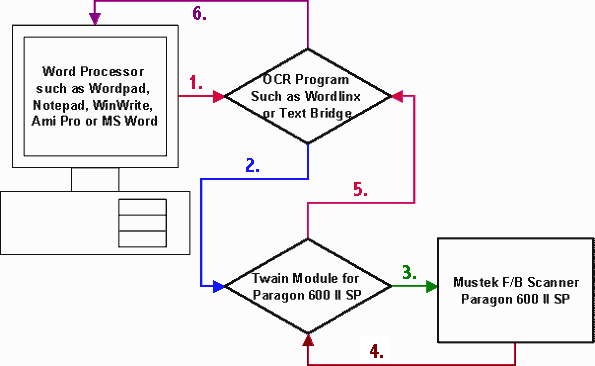
For example: the letter "a" is made from a circle, a lineon the right side and an arc over the middle. The arc over the middle isoptional. So, if a scanned letter had these "features" it wouldbe correctly identified as the letter "a" by the OCR program. Spell Checking Method No OCR software ever recognizes 100% of the scanned letters. SomeOCR programs use the Pattern Matching and/or Feature Extraction methodsto recognize as many characters as possible. After initial recognitionis performed, unrecognized letters can often be determined by looking atthe surrounding letters. For example: if the OCR program was unable torecognize the letter "e" in the word "th~ir", by spellchecking "th~ir" the program could determine the missing letteris an "e". The best optical character recognition programs, such as the one shippedwith Mustek scanners, use more than one method to determine what a characteris. By combining several of the above methods, accuracy is increased dramatically. How OCR software works with Twain and your Word Processor All Mustek scanners come with OCR software which will work withcommon Word Processors. The diagram below shows how Twain modules workin conjunction with OCR software to scan text documents into yourWord Processor:
1. A Word Processing application calls a TwainCompliant OCR application such as Text Bridge or Wordlinx. 2. Settings are adjusted if necessary in the OCRapplication which then calls the Twain Module. 3. The Twain module takes control of the scannerand allows the user to set the Scan Mode to Line Art and the Resolutionto 300 DPI. *See Note Below 4. When the Scan button is clicked, the scannerbegins transmitting the image data back to the Twain Module. 5. The Twain module transfers the image data backto the OCR program that Twain was called from. The OCR program uses oneor more of the methods described above to convert the bitmap image of yourtext into letters. 6. Twain sends the recognized letters back toyour word processor. If the OCR program could not recognize a letter,it places a ~ symbol where the unreadable letter was. Sometimes OCR programsincorrectly recognize letters. This is almost always due to poor qualityoriginal documents. **See Note Below *Note: You can use 400 DPI if your text is smaller than 10 point. Ifyour text is 10 point or larger, use 300 DPI because OCR softwareis optimized for 300 DPI scans. Believe it or not, OCR will usuallybe more accurate scanning at 300 DPI than at 400 DPI unless your text isvery small. **Note: Documents printed by high quality printing processes are mostsuitable for OCR. This includes laser printers, printing presses and books.Pages printed on inkjet printers as well as newspaper articles will givegood results, but there will be more mistakes than with laser printed originals.Items printed on dot matrix printers, copy machines and FAX machines donot produce good results with OCR software. If you are not getting good results with your OCR software, try scanningyour document with iPhoto Plus or Picture Publisher. You should set theScan Mode to Line Art and the Resolution to 300 DPI. After scanning, zoomin on some of your text and see if it looks recognizable to you. If itdoes not look good and smooth like the letter "a" above, youare either scanning a poor quality document or you need to reset the Brightnessand Contrast settings in your Twain Module prior to scanning. |
| Mustek and the Mustek logo are trademarks and registered trademarksof Mustek, Incorporated. Any use without the express written permissionof Mustek is forbidden. Other company and product names may be trademarksor registered trademarks. |