 | Document # 6010 |
| | Document # 6010 |
        |
Installing Flatbed Scanners With SCSI Cards on a Compaq Presarioin Windows 95 | ||||
Description: | ||||
| Twain driver will not install, aFatal Exception Error occurs during installation of the Twain driver, orFatal Exception Errors occur during scanning on flatbed scanners in Windows95. | ||||
Solutions: | ||||
| Option 1: Install The Twain Driver In Windows 95 Safe Mode | ||||
| Fatal Exception Errors are usuallycaused by conflicts between programs that run simultaneously. If the FatalException Error is occurring during installation of the Twain driver, youwill need to boot your computer in Safe Mode during installation of thedriver. Booting your computer in Safe Mode will temporarily disable theCompaq software that is interfering with the Twain driver installationprocess. To see a list of the Compaq software, press the Control, Alternateand Delete keys simultaneously. Some of these programs are preventing theTwain driver installation. | ||||
| Steps to install the Twain driverin Safe Mode | ||||
| 1. | If installing from a Scanner SolutionsCD you must copy the contents of the CD to your hard drive before bootingup in Safe Mode because your CD-ROM drive will not operate in Safe Mode.Here are the steps to do this: | |||
| a. | Insert the Scanner Solutions CD in your CD-ROMdrive. | |||
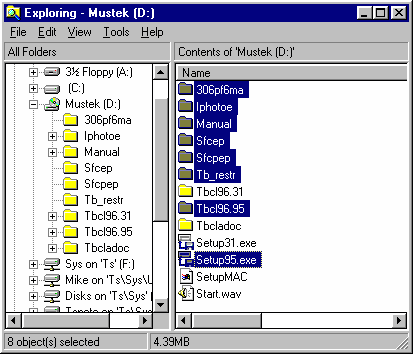
| b. | Click the START button and choose PROGRAMS,then start the Windows Explorer. Refer to the diagram below. | |||
| c. | Locate the icon for your CD-ROM drive In theLEFT window of the explorer and double click it.
| |||
| d. | Highlight the Setup95.exe file as well asall of the folders in the RIGHT window of the Explorer. You don’t needto select Tbcl96.31, Tbcladoc, Setup31.exe, Setupmac.exe or Start.wav files.Holding down the control key will allow you to select more than one item.Item names may not match this picture depending on your CD version number. | |||
| e. | Click open the FILE Menu and select COPY thenclose the Explorer. | |||
| f. | Using the RIGHT mouse button, click in thelower portion of your Desktop. From the Pop-up Menu, select PASTE. Thefiles needed to install Scanner Solutions in Safe Mode will now be copiedto your Desktop. You may delete them after installation. | |||
| 2. | Reboot your Compaq Presario in SafeMode. Here are the procedures to do this. | |||
| a. | Click START and select SHUTDOWN. | |||
| b. | Highlight "Restart The Computer?"then click YES. | |||
| c. | Your computer will now shutdown then restart.During the restart, listen for the computer to beep. When you hear twoshort beeps, hold down the F8 key until you see the Windows Startup Menu. | |||
| d. | Select "3. Safe Mode" and pressthe Enter key on your keyboard. Your computer will now begin to boot inSafe Mode. Be patient as it takes longer than a normal boot. | |||
| 3. | Now that you are in Safe Mode, youmay install the Twain driver from floppy disk or from the Scanner Solutionsfiles that were copied to your Desktop. To install from floppy, click STARTand select Run then type A:install and click OK. To install from the ScannerSolutions files on your Desktop, double click the Setup95.exe Icon. | |||
| 4. | After you get to the installationscreen that asks what type of Interface card you are using, you will begiven an opportunity to select an I/O Port Address for the scanner. Thelatest drivers prompt you to select an I/O Port. With earlier versionsof the Twain driver, an address can be chosen on the screen where you performthe Scantest. | |||
| 5. | The addresses that work best onCompaq Presarios are 340, 300 and 2A0. Perform a Scantest to see if theAddress you have chosen performs satisfactorily. If not, reboot in SafeMode and try another Address until you pass the Scantest. | |||
| 6. | After passing the Scantest, clickinstall to finish the software installation. Restart your computer in NormalMode. If you still have trouble scanning, proceed with the steps outlinedin Option 2 for replacing the Compaq Shell with the Windows 95 Shell. | |||
| Option 2: Replace The Compaq Shell With The Windows 95 Shell | ||||
| The best solution is to replacethe Compaq Shell with the Windows 95 Explorer Shell and disable automaticloading of the Compaq software during boot. This procedure is more complexthan booting in Safe Mode but will make your system more stable in theend. | ||||
| Steps to replace the Compaq Shellwith the Windows 95 Shell. | ||||
| 1. | Click the START button and select RUN. | |||
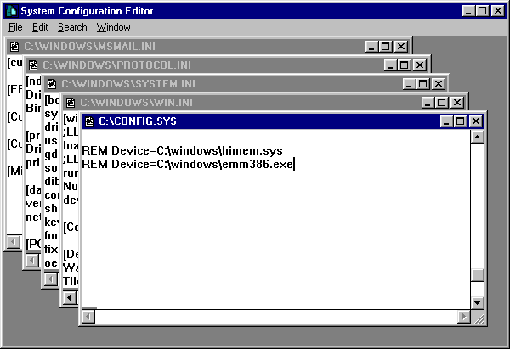
| 2. | Type SYSEDIT and click OK. This opens theSystem Configuration Editor which is a simple word processor. Each of yoursystem files will be open in it’s own window. Refer to the diagram forthe remaining steps.
| |||
| 3. 4. | In the Autoexec.bat file, locate a line thatsays: C:COMPAQSUPPORTLLHB.EXE Type the word REM and one space in front of this line as below: rem C:COMPAQSUPPORTLLHB.EXE | |||
| 5. | In the Config.sys file, locate a line containingthe following: DEVICE=C:WINDOWSHIMEM.SYS | |||
| 6. | Type the word REM and one space in front ofthis line as below: REM DEVICE=C:WINDOWSHIMEM.SYS | |||
| 7. | Still in the Config.sys file, locate a linecontaining the following: DEVICE=C:WINDOWSEMM386.EXE | |||
| 8. | Type the word REM and one space in front ofthis line as below: REM DEVICE=C:WINDOWSEMM386.EXE | |||
| 9. | Click on the FILE Menu and click SAVE, thenclose the Config.sys file. | |||
| 10. | In the Win.ini file, locate a line that says: RUN= | |||
| 11. | If there is anything after the equal sign,type the word REM and one space as you did above | |||
| 12. | Still in the Win.ini file, locate a line thatsays: LOAD= | |||
| 13. | If there is anything after the equal sign,type the word REM and one space as you did above. | |||
| 14. | Click on the FILE Menu and click SAVE, thenclose the Win.ini file. | |||
| 15. | Click on the FILE Menu and click SAVE, thenclose the Win.ini file. | |||
| 16. | In the System.ini file, locate the line thatbegins with: Shell= | |||
| 17. | Type the word REM and one space in front ofthis line. | |||
| 18. | Below the Shell= line, type a new Shell= lineexactly like the line below: Shell=EXPLORER.EXE | |||
| 19. | Click on the FILE Menu and click SAVE, thenclick on the FILE Menu and click EXIT. | |||
| 20. | Next we will empty the STARTUP Program Group. | |||
| 21. | Using the RIGHT mouse button, click START,then click OPEN and the Start Menu folder will open. | |||
| 22. | Double click the Programs folder and it willopen. | |||
| 23. | Open the Program folder’s FILE Menu and selectNEW, then FOLDER. | |||
| 24. | Name the new folder OLD STARTUP then pressENTER. | |||
| 25. | Double click the STARTUP folder and highlightall of the items in it. | |||
| 26. | Open the EDIT Menu and select COPY. | |||
| 27. | Open the Old Startup folder that you justcreated. | |||
| 28. | Open it’s FILE Menu and select PASTE. Thecontents of the Startup folder should now be in the Old Startup folder.These programs will no longer automatically load when you boot your computer. | |||
| 29. | Double click the Startup folder and highlightall of its’ contents. | |||
| 30. | Press the DELETE key and confirm deletionof the items in the Startup folder. | |||
| 31. | Close all folders and reboot your computer. | |||
| 32. | During boot, you will get a message sayingyour Compaq Software may not work with your new shell. You will be askedif you would like to continue using the Compaq Software. Click NO and continuebooting up. | |||
| 33. | You may now install the software in accordancewith the installation instructions included with your scanner. We recommendthat you set the scanner’s address to one of the following during installationof the Twain driver: 340, 300 or 2A0. | |||
| NOTE: If you ever need to call CompaqTechnical support, inform them of the changes you made to the system. Belowis a summary of the changes made: | ||||
| 1. 2. | Disabled HIMEM.SYS and EMM386.EXEin the Config.sys file. Disabled Compaq Homebase in Autoexec.bat file. | |||
| 3. | Disabled RUN= and LOAD= lines inthe Win.ini file. | |||
| 4. | Replaced the Compaq Shell with theWindows 95 Explorer Shell. | |||
| 5. | Emptied the Startup Program Group. | |||
| Mustek and the Mustek logo are trademarks and registered trademarksof Mustek, Incorporated. Any use without the express written permissionof Mustek is forbidden. Compaq and Compaq Presario are trademarks and registeredtrademarks of Compaq Corporation. | ||||