 | Document # 7010 |
        |
Using Mustek Scanners With Third Party Applications |
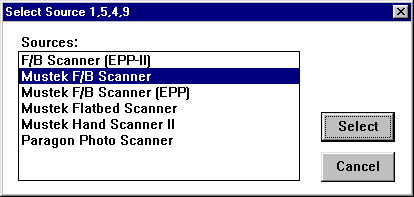
Mustek scanners are Twain Compliant. Theywill work with any application that supports the Twain specification. Thisdocument describes how to access a Mustek scanner from within certain thirdparty Twain applications such as Photoshop 4.0 and Microsoft Picture It!.If you do not see your application on this list, it probably will workwith your Mustek scanner. The procedures will be similar to those listedhere, but you will need to refer to your Twain application’s documentationfor the specific steps required. Adobe Photoshop 4.0Microsoft Picture It!Using A Mustek Scanner With Adobe Photoshop4.0 For Windows 95There are two steps required to use the scanner with most Twain applications:Selecting the Twain Source and Acquiring the Scanner. 1. After you have installed Photoshop 4.0, open the File Menu and placeyour mouse cursor on "Import". A flyout Menu appears. Click onSelect TWAIN_32 Source. The source window shown below appears:
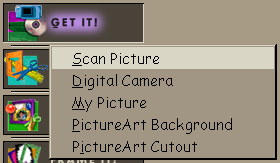
Highlight the Twain source for your scanner and click the Select button. 2. Open the File Menu and place your mouse cursor on "Import".A flyout Menu appears. Click on TWAIN_32 to acquire the scanner’s Twaininterface. Select the settings you wish to use and Prescan or Scan as desired.After scanning your picture, click cancel to return to Photoshop. Using A Mustek Scanner With Microsoft PictureIt!There are three steps required to use the scanner with Microsoft PictureIt!. 1. Click on "Get It" then Select Scan Picture.
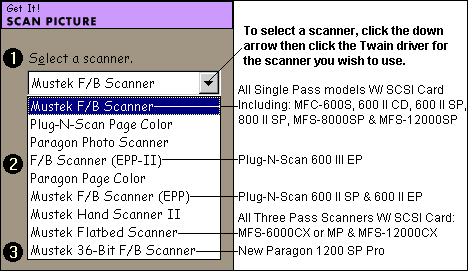
2. A window like the one below will appear which lists all of the TwainSources you have installed on your computer. Choose the Twain Source foryour Mustek Scanner.
Refer to the notes at right in the above diagram if you are unsure whichTwain Driver is for your scanner. Note: You will not have all of the listed drivers installed, but itis possible to have drivers installed for scanners that you do not own.
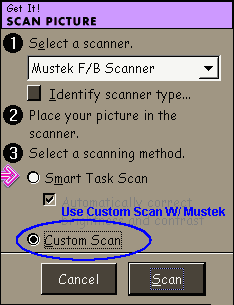
3. The Smart Task Scan feature of Picture It! does not work with Mustekscanners. Check Custom Scan then click Scanto acquire the Twain interface for your Mustek scanner. Select the settingsyou wish to use and Prescan or Scan as desired. After scanning your picture,click cancel to return to Picture It!.
Screen shot was modified to reduce file size and download time. |
| Mustek and the Mustek logo are trademarks and registered trademarksof Mustek, Incorporated. Any use without the express written permissionof Mustek is forbidden. Other company and product names may be trademarksor registered trademarks. |