 | Document # 7137 |
        |
|
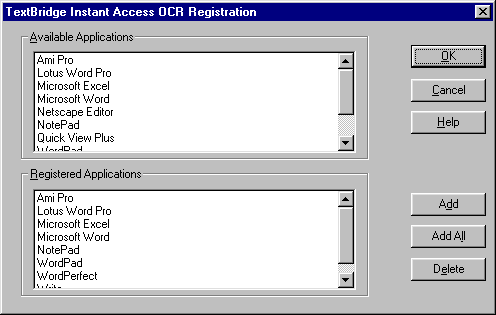
| It is necessary to register your Word Processing Application with TextBridge Classic Instant Access OCR prior to scanning. Most Word Processorswill already be registered with Instant Access OCR. When you install TextBridge Classic in Windows 95, the Instant Access OCR program will automaticallybe placed in your Startup Program Folder. Each time you boot your computer,Instant Access OCR will be running minimized. The minimized window’s buttonappears on the taskbar, indicating that TextBridge Classic is availablefrom registered applications. Follow these steps to see if your Word Processoris registered. 1. Click the "Instant Access OCR" button on the taskbar andthe TextBridge Instant Access OCR Registration dialog shown below willbe displayed. Before you can run TextBridge Classic from within a wordprocessing or other text application, you must register the host application.
2. Registered Applications shows the list of host text applicationsthat are already registered. If your application is already listed here,you can simply click OK to close the dialog and proceed. 3. Available Applications shows the host text applications that canbe registered. 4. If your application does not appear in this list, you must add itto the list before you can register it with Instant Access OCR. a. Close the TextBridge Instant Access OCR registration dialog: clickCancel if the dialog is open. From the taskbar, click the Instant AccessOCR button with the right mouse button, then click Close. b. If your application did not appear in the Available Applicationslist at step two, start your application after closing Instant Access OCR. c. Reopen Instant Access OCR and your application should now be in thelist of Available Applications. To reopen it, click the Start button, pointto Programs, point to the TextBridge Classic folder, and click the TextBridgeClassic Instant Access OCR icon. Then click the Instant Access OCR buttonon the taskbar. Your application should now appear in the Available Applicationslist. 5. After selecting the host text application to register from the AvailableApplications list, click "Add" to add it to the Registered Applicationslist. 6. You should now be able to scan text into your Word Processing Applicationby clicking the "Text Bridge OCR" option on the file menu ofyour program. For more specific instructions see Document# 7138, the Text Bridge Classic Windows 95 Tutorial. |
| Mustek and the Mustek logo are trademarks and registered trademarksof Mustek, Incorporated. Any use without the express written permissionof Mustek is forbidden. Other company and product names may be trademarksor registered trademarks. |
 Registering Your WordProcessor With Text Bridge Classic’s Instant Access OCR in Windows 95