Making Windows WallpaperWith Picture Publisher The first step in making Wallpaper is to determinewhat resolution your screen is set to. Most people run their screen in640 X 480 or 800 X 600 mode. DeterminingScreen Resolution in Windows 95To see what your screen is set to, open the ControlPanel and double click the Display icon. Click on the Settings tab. UnderDesktop Area your screen resolution will be listed. You should also checkunder Color Palette to make sure that your screen is set at least to 16-bitHigh Color mode bacause scanned images will not look good at 256 or 16color mode. Once you have determined your screen resolution, you can createa Wallpaper of the same dimensions. For this tutorial we will assume theresolution is set to 640 X 480.
DeterminingScreen Resolution in Windows 3.1xFrom the Program Manager, open the Main programgroup. Double click the Windows Setup icon. The next screen will say whatresolution your display is set to.
Steps For Making A WallpaperThe steps for making Wallpaper are the same inPicture Publisher for Windows 3.1x and Windows 95, though the Windows 3.1xscreens may look slightly different than the ones shown here. 1. Select a 3-1/2" X 5" or 4" X6" picture to use as your Wallpaper. 2. Start Picture Publisher and Acquire the scanner. 3. Set the Scan Mode to Color, Resolution to 150DPI and click the Color Matching icon (the one with a red, a green & ablue dot) above the Preview Image window. 4. Prescan the image then set the Crop Frame tothe full size of your picture. 5. Scan the image. After scanning, click the cancelbutton to close the Twain driver and return to Picture Publisher with yourimage. 6. Click on the Image Menu and select Size. 7. The dialog box next to the width box to probablysays Inches. Change it to say pixels as shown below. 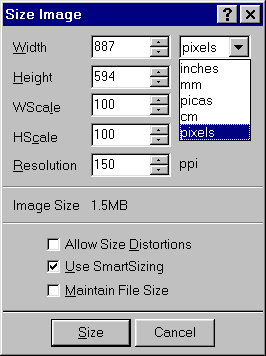
8. The Width and Height of your image in pixelsis now displayed. 9. Notice in the example that my image is 887X 594 pixels. This is too large to fit on a 640 X 480 screen so I willeither have to scale down the image or crop it in order to make it fitmy screen. I choose to scale it down. 10. A 3-1/2" X 5" or 4" X 6"photo is too wide to use all of the image as Wallpaper. It will need tobe cropped later to get the proper width. For now, I am only concernedabout getting the Height down to 480 pixels. To do this, manually typein 480 in the Height box as shown below. Notice that for my sample imagethis is a scaling factor of 81%. 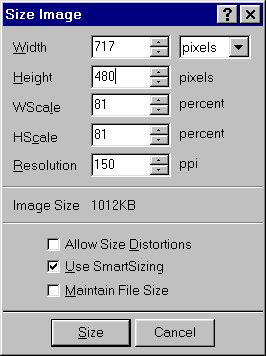
11. Make sure the Use Smartsizing button is checked(smartsizing will usually result in a smoother image), then click the Sizebutton. 12. My sample picture is now 717 X 480, stilltoo wide for a 640 X 480 screen. 13. We will use Picture Publisher’s powerful maskingfeatures to crop the image to exactly 640 X 480. Refer to the picture belowfor the next steps. 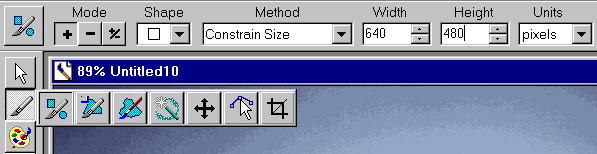
14. On the Toolbar at left, click the Mask tooland select first mask tool on the left (one with square, circle and knife). 15. Under the shape dialog box, make sure thesquare is selected. 16. Under the method dialog box, choose ConstrainSize. 17. Under the Units dialog box, select pixels. 18. Set the Width to 640 and the Height to 480. 19. Click the mask tool on your picture and keepthe mouse button held down. This will draw a box exactly 640 X 480 pixels.You can move it back and forth to crop the image where you want to. Onceyou let the mouse button up, a mask will be drawn. 20. Click on the Mask Menu and choose Crop ToMask. You now have a picture exactly 640 X 480 pixels which can be usedas a Windows Wallpaper. 21. Click on the file Menu and choose Save. 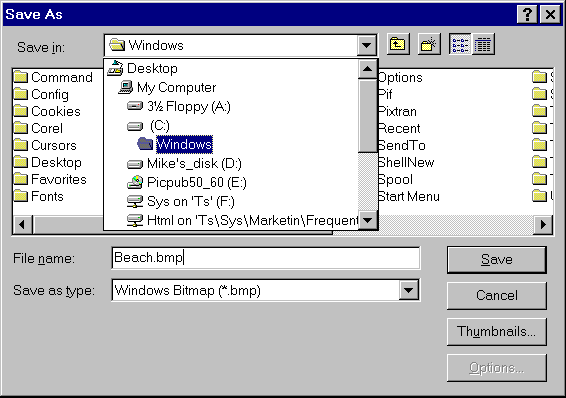
22. Under the Save In dialog box, choose the Windowsfolder. 23. Under the Save As Type dialog box, chooseWindows Bitmap (*.bmp). 24. In the File Name dialog box, type in a namefor yor new Wallpaper then click the Save button. Selecting YourNew Wallpaper in Windows 95.To select your new Wallpaper, open the ControlPanel and double click the Display icon. Click on the Background tab. Inthe Wallpaper dialog box, select the filename you saved your picture as.If you do not see the right name on the list of Wallpaper files, you didnot save your file in the Windows folder or you did not save it as a *.bmpfile.
Selecting YourNew Wallpaper in Windows 3.1xTo select your new Wallpaper, open the Main programgroup and double click the Control Panel. Double click the Desktop icon.In the Wallpaper dialog box, select the filename you saved your pictureas. If you do not see the right name on the list of Wallpaper files, youdid not save your file in the Windows folder or you did not save it asa *.bmp file.
|