Text Bridge Classic Windows 95 TutorialMicrosoft Word97 Users Click Here The steps in this tutorial will teach you to use TextBridge Classicwith the Windows 95 Wordpad. The steps to use it with other word processingapplications are similar. The Instant Access OCR program must be onyour Windwos 95 Taskbar for this tutorial to work. If Instant Access OCRis in your Startup program group, it will automatically load to your Taskbarduring bootup. If it is not there now, click the Windows 95 Start button,select Programs, highlight TextBridge Classic and click on Instant AccessOCR. 1. Start the Windows 95 Wordpad. It is on the Accessories Menu underPrograms on your Start Menu. 2. In Wordpad, open the file menu and click the TextBridge OCR commandnear the bottom. 3. A Textbridge window like the one below will open. 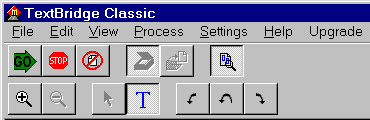
4. Click the  buttonso it looks like this: buttonso it looks like this:  TextBridgeis now set to the Preview mode. TextBridgeis now set to the Preview mode. 5. Click the Go button which will bring up the F/B Scanner dialogbox (Twain driver). 6. Set the Scan Mode to Lineart, the Resolution to 300 dpi and clickPrescan. 7. When the Preview comes up, set the Crop Frame so it surrounds allof the text you wish to recognize (Don’t crop too close). 8. Click the Scan button. After the page is scanned, the F/B Scannerdialog box will close automatically and return to TextBridge Classic. 9. Click the  buttonthen use the mouse to draw a box closely around your text in order to cropout the margin of your page. This will result in a higher accuracy rate. buttonthen use the mouse to draw a box closely around your text in order to cropout the margin of your page. This will result in a higher accuracy rate. 10. Click the Go button. TextBridge will now recognize the text on thispage. Afterward, you will be asked if you have additional pages to scan.If there are more pages, click continue, otherwise click End. 11. After you click End, TextBridge will return the text to Wordpad.It is now a standard word processor file that can be saved as usual. The above steps are virtually the same ones used to recognize text withany word processor. If Instant Access OCR is on the Taskbar, you shouldsee a TextBridge OCR command on the file menu of your word processor. Ifthe command does not appear on the file menu, your application probablyhas not been registered with Instant Access OCR. RegisteringYour Word Processing Application With Instant Access OCR1. Click the Instant Access OCR icon on the Taskbar. 2. Look at the list of Registered Applications to see if your programis listed. If it is not there, choose your program from the list of AvailableApplications and click the Add button. 3. If your program is not in the list of Available Applications, makesure your program is running in the background then right click InstantAccess OCR and close it. Restart Instant Access OCR while your programis running in the background and it should be added to the Available Applicationslist. If it does not get added to the list, it will not work with TextBridgeClassic. | 