 Batch Scan Icon | To do a batch scan, the steps are: 1. Prescan the document. 2. Click the Batch Scan Icon in the row of iconsabove the Preview Image window. The Batch Scan dialog box appears. |
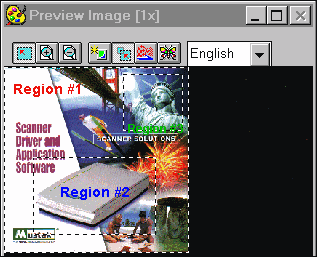 Region #1 is entire CD slipcover. | 3. Create a scan region: a. Move the cursor inside the Preview Window. b. Hold down the Shift key, press the left mousebutton and drag the mouse to create a Crop Frame. c. Reposition or resize the Crop Frame if necessary. 4. Set the desired scan mode and resolution forthe current scan region. |
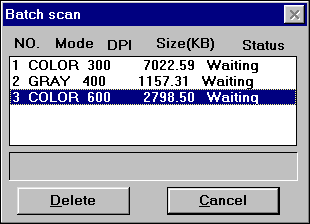 Different Settings For Each Scan Region | 5. Repeat steps 2 and 3 if you wish to createmore scan regions. You can have up to 10 scan regions. If you want to duplicatethe current scan region, simply hold down the Shift key and click the BatchScan Icon. Notice that each region has a different Scan Modeand/or DPI setting. 6. Click Scan.The scanner will begin to scan the regions one after the other. Each regionwill become a separate image file.
|
